
ChatGPT Image Editor
ChatGPT image editor: upload a photo, say what to change and what to keep, and get the edit. Your first image is free, no sign-up, no credit card.
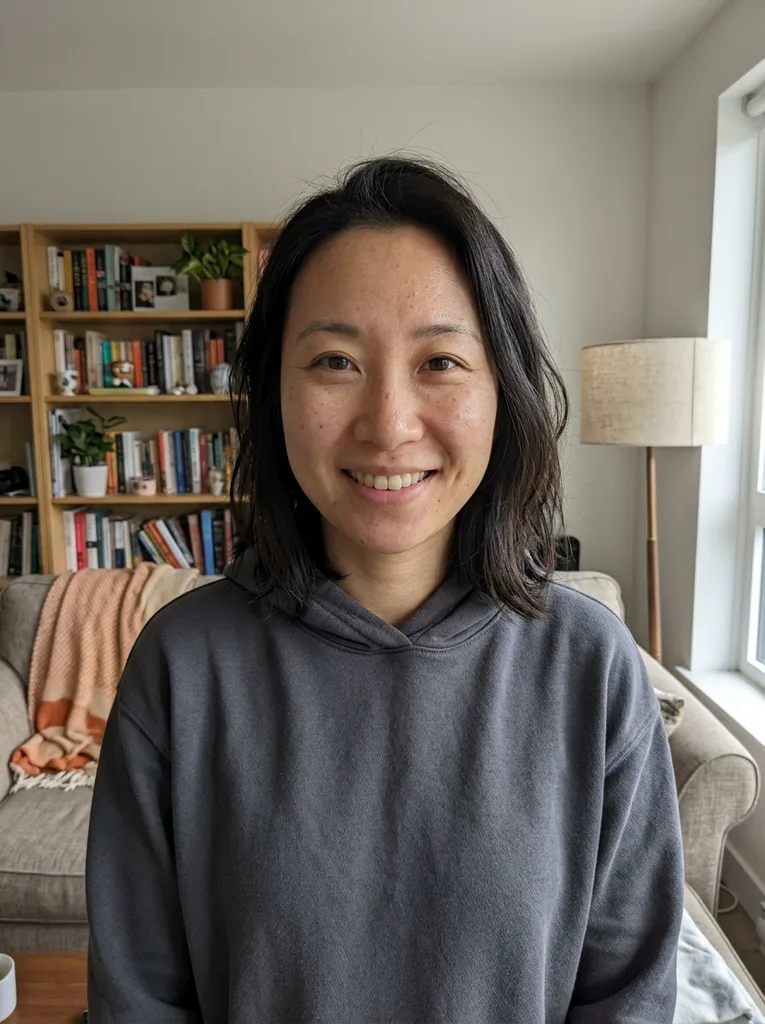 Before
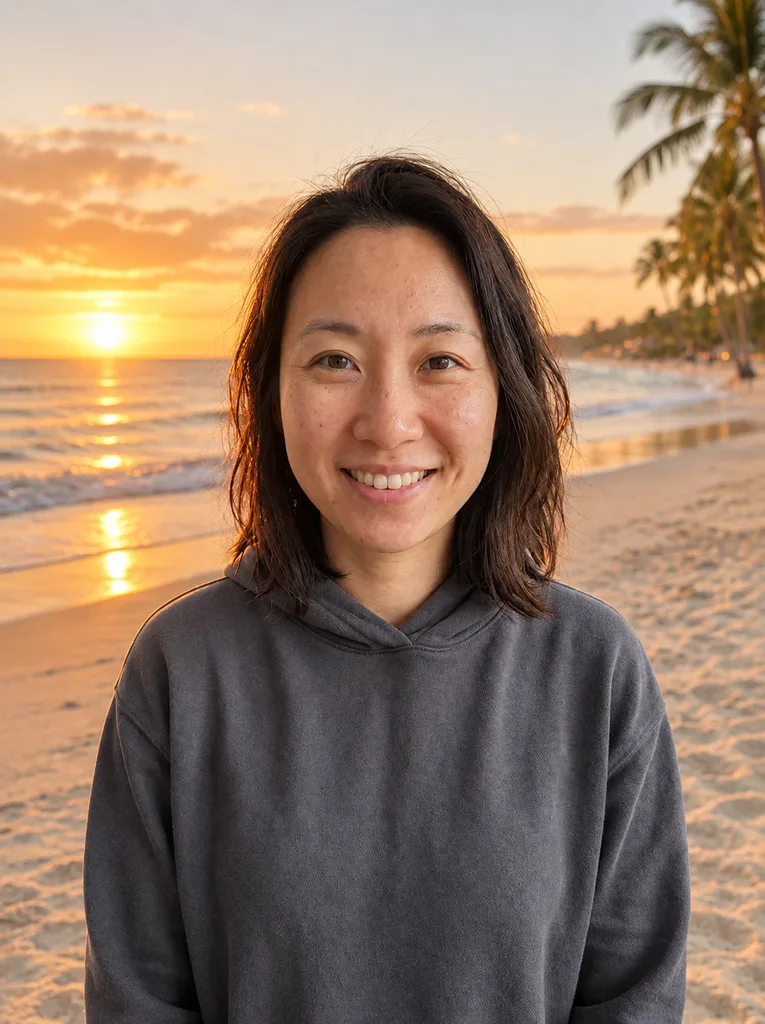 After
Example result. Describe your image to make yours.
Examples
BeforeAfterHow to edit a photo with the ChatGPT image editor
Using the ChatGPT image editor takes three steps: one request, one edited image.
- 1
Upload the photo to edit
Drop in a JPG, PNG, WEBP or iPhone HEIC file. You can add up to 15 more images as references, such as a product, a face or a style to copy. The first image is the one that gets edited.
- 2
Describe the change and what to stay
Write one sentence like "Change the background to a sunny beach." The tool adds an instruction to change only what you ask and keep everything else in the picture, including faces, pose and lighting.
- 3
Edit, compare and download
Press Edit Image. The result appears beside the tool; compare it with your original, check the details, then use Download to save the file.
What a ChatGPT image editor is used for
Six jobs that a short written request handles well.
Swap a background
Move a portrait or product shot to a studio backdrop, a beach or an office. Name the new place and say the subject stays.
Remove something
Ask for a stray person, a cable or a trash can to be taken out, and name what should fill the gap.
Change clothes or style
Try a different jacket, or restyle the photo as a watercolor, a sketch or a comic page.
Fix light and color
Ask for warmer light, a brighter room or a calmer color palette on a photo that came out flat.
Combine several images
Upload a product plus a scene, or a person plus an outfit reference, and describe how they should fit together.
Make product and social images
Put a product into a lifestyle setting or prepare a picture for a post without opening a design tool.
Before you press Edit: tips for better results
Small habits that get more out of the ChatGPT image editor.
- Name the area: write "the sky" or "the left chair", not "fix this".
- Say what must stay, for example "keep her face, pose and jacket".
- Choose the change you want most and name what must stay.
- Add reference images for a product, a face or a style, and say what each one is for.
- Start from a sharp photo; blur in the original usually stays blurry.
- For text in the image, spell out the exact words you want.
Editing a photo: AI prompt, manual editor or chat
Where this ChatGPT image editor fits next to the other ways to edit a photo.
| This editor | Layer-based photo editor | Chat-based AI assistant | |
|---|---|---|---|
| How you edit | One written request | Layers, masks and tools | Messages in a conversation |
| Follow-up edits | No chat; each run starts from your upload | Unlimited manual steps | Yes, in the same thread |
| Select an area | Describe it in words, no brush | Brush, lasso and masks | Varies by app |
| Skill needed | Plain sentences | Learning the tools | Plain sentences |
| Pixel-exact control | No, the AI redraws | Yes | No |
| To try it | One free image, no sign-up | Learn the editing tools | Needs its own account |