
GPT Image 2.5
Try GPT Image 2.5 Flare online: upload a photo, say what to change, and get one edited image. Your first image is free, no sign-up.
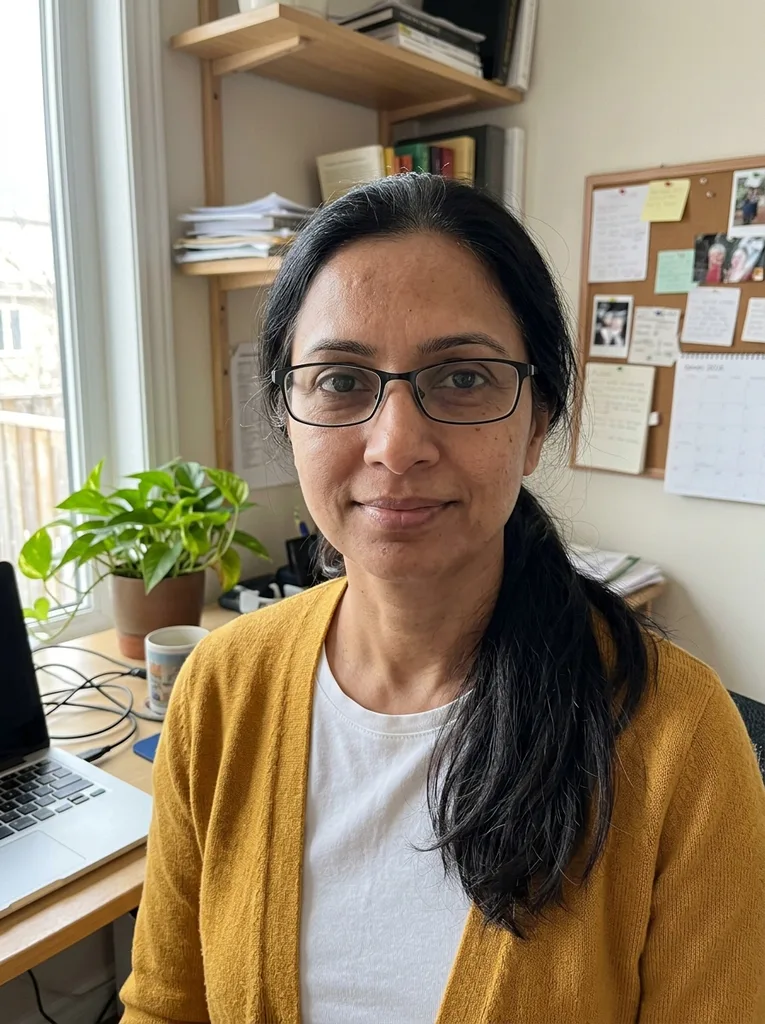 Before
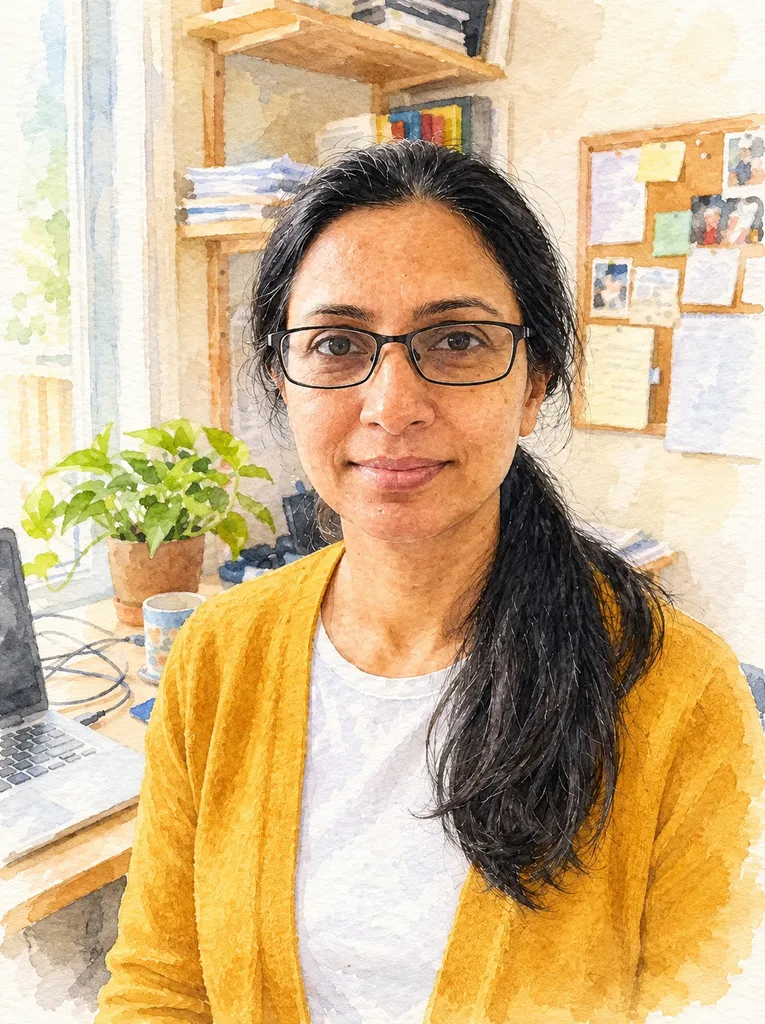 After
Example result. Describe your image to make yours.
Examples
BeforeAfterGPT Image 2.5 Flare: the model this page runs
OpenAI released GPT Image 2.5 in two API variants. Flare is the small, fast one. Sunburst is the larger one, aimed at fine detail and slower to run.
This page runs Flare. It does not run Sunburst, and it does not quietly fall back to GPT Image 2. The site is an independent tool, not operated or endorsed by OpenAI.
Write the prompt as one complete request
Each run is a single request: your photos and your prompt go in, one image comes out. There is no chat, so nothing you said earlier carries over.
Name the change, then name what must stay, such as the face, the pose or the background. The model is told to follow that, but it is AI output, so compare the result with your original before you use it.
For a product shot or a face, add it as a reference image and mention it in the prompt.
What one GPT Image 2.5 run gives you
Each run returns one 1K image at the aspect ratio you pick; Auto follows your input photo. The result appears beside the tool and stays there until the next run replaces it, so download what you want to keep.
OpenAI positions Flare as the everyday 2.5 variant: quick turnaround for edits and drafts. If you need a result that holds up under a very close look, check the output at full size before you rely on it.
Text inside images and small details are worth a second look on any AI model. Zoom in and compare with your original.
GPT Image 2.5 Flare vs Sunburst vs GPT Image 2
What each model is, and what you can do with it on this site.
| 2.5 Flare | 2.5 Sunburst | GPT Image 2 | |
|---|---|---|---|
| What it is | Small, fast variant of 2.5 | Larger 2.5 variant for fine detail | Previous generation |
| Speed, per OpenAI | Faster than GPT Image 2 | Slower than Flare | Slower than Flare |
| Runs on this site | Yes, on this page | No | Yes, on its own page |
| Images per run | Up to 16 in, 1 out | Not offered | Up to 16 in, 1 out |
| Aspect ratio | Auto or 7 ratios, at 1K | Not offered | Auto or 7 ratios, at 1K |
| Free try | one free image, shared by the whole site | Not offered | one free image, shared by the whole site |
How to edit an image with GPT Image 2.5
Three steps from photo to download.
- 1
Upload your photos (optional)
Add the image to edit, plus up to 15 references if you want a product, face or style carried over. JPG, PNG, WEBP and iPhone HEIC work, up to 10 MB each. The first image is the one that gets edited, so put it first. Skip this step to create an image from text alone.
- 2
Describe the change
Write what to change and what to keep, up to 5,000 characters. Give one clear instruction rather than a list of ten edits. If you added references, say what each one is for, such as the product to place or the style to copy.
- 3
Generate and download
Press Generate and wait for the image in the result panel. Download it before your next run, which replaces it.